
English 


Author: Site Editor Publish Time: 2026-11-10 Origin: Site


The digital dentistry transition relies heavily on visual patient education. At its core is the USB Intraoral Camera, a vital tool for precise diagnosis and improved case acceptance. However, clinic managers often face a frustrating compatibility gap today. Hardware peripherals frequently struggle to sync perfectly alongside established practice management platforms. We must distinguish between standard communication protocols to solve this issue. You will encounter terms like standard drivers, universal video classes, and proprietary integrations during your hardware search. This article breaks down these technical barriers effectively. Our objective is straightforward and practical. We provide a structured decision-making framework for dental clinic managers and IT leads. You will learn how to minimize integration friction and maximize operational efficiency seamlessly.
TWAIN remains the industry standard for bridging hardware and legacy imaging software but requires driver management.
UVC offers "plug-and-play" simplicity but lacks advanced remote-capture triggers compared to TWAIN.
Dedicated/Proprietary software provides seamless UX but risks vendor lock-in.
Compatibility is not just about connectivity; it’s about workflow latency, image resolution integrity, and future-proofing.
Evaluation must prioritize current software environment, IT support availability, and desired clinical efficiency.
Every dental clinic relies on smooth communication between physical hardware and digital records. When you plug a new camera into a workstation, a hidden language dictates how well it functions. Understanding this technical landscape helps you avoid daily frustrations. It also prevents clinical downtime during patient consultations.
TWAIN acts as a universal translator between imaging devices and software applications. Originally developed for flatbed scanners, it remains the industry standard for dental clinics. A TWAIN Driver allows your chosen software to request an image capture directly from the camera. This protocol is essential for integrating third-party cameras into established practice management systems. It provides a standardized menu for adjusting brightness, contrast, and resolution before saving the image.
Modern operating systems natively support UVC technology. It represents a universal standard for streaming video over USB connections. A UVC Driver acts exactly like a standard computer webcam. This approach eliminates complex installation procedures completely. You simply plug the device in, and Windows or macOS recognizes it immediately. However, it requires software capable of capturing native video streams directly from the source.
Clinics often experience unexpected failures when mixing different hardware and software ecosystems. Common issues include:
The Black Screen: The software recognizes the camera name but cannot decode the video feed.
Capture Button Failure: The camera streams video perfectly, but the physical button on the wand does nothing.
Resolution Downgrades: The software forcefully compresses the high-definition image into a lower quality format.
These dilemmas occur because proprietary software often expects proprietary hardware signals. Generic drivers struggle to translate hardware-specific commands like remote button presses. We must carefully match the camera's communication protocol to the software's native capabilities to resolve this.
Selecting the right communication protocol requires a thorough assessment of your current operations. You cannot evaluate a camera in isolation. We must consider how it interacts within your specific clinical environment. Here are the core criteria to guide your decision-making process.
Software Ecosystem Audit: You must identify your current platform's strict requirements first. Applications like Dexis, Eaglesoft, or Open Dental handle image captures differently. Some mandate specific proprietary plugins. Others permit open-standard captures through generic protocols. You must verify what your Dental Imaging Software officially supports before purchasing new hardware.
Workflow Efficiency & Latency: Evaluate how quickly images move from the camera lens to the patient record screen. High latency disrupts the natural flow of patient communication. If a dentist clicks the capture button and waits three seconds for the image to appear, patient engagement drops. Instantaneous capture protocols improve the overall consultation experience significantly.
Image Integrity & Compression: Diagnostic clarity remains your top clinical priority. Assess whether the chosen communication standard compresses files automatically. Some legacy drivers alter image resolution in ways that hide micro-fractures or subtle decay. You need a data pathway that preserves the original sensor data perfectly.
Support & Maintenance Scalability: Consider the ongoing IT overhead required for different systems. Managing specific driver updates across twenty workstations requires significant technical support. Conversely, plug-and-play devices offer a highly scalable, set-it-and-forget-it nature. Your available IT resources should dictate which path you choose.
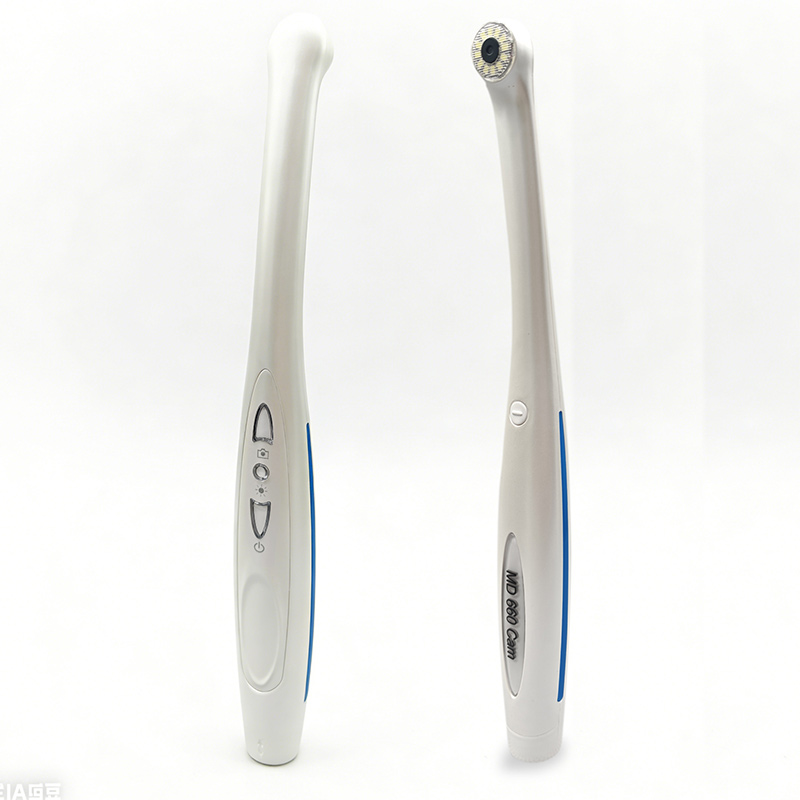
Theoretical compatibility often looks perfect on paper. However, actual clinical deployment reveals several hidden challenges. Understanding these practical realities ensures a smoother transition for your entire team. We must address common pitfalls proactively to maintain operational efficiency.
Operating systems occasionally confuse multiple imaging devices. If your workstation connects to a panoramic X-ray, a document scanner, and an intraoral camera simultaneously, conflicts will arise. You must learn to troubleshoot and isolate USB port issues effectively. Often, simply assigning a dedicated USB hub or adjusting power management settings resolves intermittent disconnects. Always ensure competing imaging sources do not share the same background processes.
Patient data privacy remains paramount during any hardware integration. You must ensure image capture paths remain within the clinic’s secure digital environment. Some third-party bridging tools temporarily save images to unsecured local folders before transferring them. This vulnerability can compromise strict HIPAA or GDPR compliance standards. Verify the direct data transfer pipeline encrypts or securely handles all protected health information immediately upon capture.
Every piece of technology possesses a finite lifespan. You must consider the risks of investing heavily in proprietary systems. Vendors occasionally discontinue software support for older hardware models abruptly. This forces premature and unplanned upgrades. Conversely, standardized open-protocol hardware offers much better longevity. Generic devices adapt more easily when you eventually migrate to newer practice management platforms in the future.
Technology only succeeds when staff adopt it willingly. You must prioritize training regarding hardware-specific behaviors. The capture button on the camera wand presents the biggest training hurdle. Some buttons only function alongside native, brand-matched software. If you use a generic integration, staff might need to use a foot pedal or click a mouse instead. Clear communication about these workflow adjustments prevents daily frustration and ensures consistent usage.
Every dental practice operates with unique resources and goals. No single integration strategy works perfectly for everyone. We categorize the best approaches into three distinct paths. You should align your final choice with your specific operational priorities.
This approach relies entirely on universal standards. It represents the best option for solo practices or clinics utilizing modern, web-based imaging platforms. It requires minimal IT support. You sacrifice advanced physical button controls for ultimate simplicity. The device functions reliably across different operating systems without ongoing maintenance.
Multi-operator clinics with legacy infrastructure usually require this route. It provides a centralized, highly consistent capture experience across numerous distinct workstations. While it demands higher initial IT configuration, it successfully bridges modern hardware with older database systems. It ensures every operatory functions identically.
High-end specialty clinics often prioritize maximum diagnostic image quality above all else. This path involves purchasing hardware and software from the same manufacturer. It guarantees deep integration with specific 3D imaging modules and seamless user experiences. The primary trade-off involves accepting strict vendor lock-in for future upgrades.
Integration Path | Best Suited For | Key Advantage | Major Drawback |
|---|---|---|---|
Plug-and-Play (UVC) | Solo practices, web-based systems | Zero installation overhead | Lacks physical capture button support |
Standardization (TWAIN) | Multi-operatory legacy setups | Broad legacy compatibility | Requires ongoing IT driver updates |
Performance (Proprietary) | High-end specialty clinics | Seamless workflow and quality | Strict vendor lock-in |
Follow a strict vetting checklist before making any final purchases:
Request an official compatibility list directly from your software provider.
Demand trial units to test button functionality in your live environment.
Verify ongoing technical support availability for third-party integrations.
Test the latency between physical capture and screen display personally.
Choosing the correct integration pathway requires balancing operational efficiency against technical versatility. A universal setup offers freedom, while a proprietary setup offers seamless polish. You must carefully weigh these trade-offs against your daily clinical realities.
We strongly advise prioritizing software compatibility over raw hardware specifications during your initial selection phase. A camera with an incredible sensor provides zero value if it refuses to communicate with your patient records. Focus on the integration pathway first, then select the best hardware within that ecosystem.
Ultimately, the best clinical technology is the kind you never have to think about. It should disappear entirely into the background of a highly productive clinical workflow, leaving you free to focus entirely on patient care.
A: Windows recognizes the device using universal standards. However, your dental software likely requires a specific communication protocol to access it. If the software relies on legacy inputs, it cannot see universal video devices automatically. You must install the correct bridging utility to establish the connection.
A: Yes, many modern cameras feature hybrid capabilities. They operate natively as universal video devices for basic tasks. Manufacturers also provide specific driver packages alongside them. You can select the universal option for simple webcam applications or install the dedicated package for complex practice management integrations.
A: It can introduce slight latency. The protocol acts as a middleman between the hardware and your application. This communication overhead takes processing time. Properly updated drivers minimize this delay. However, native direct integrations generally process and display captured images faster.
A: You should prioritize software integration primarily. High-resolution sensors become useless if the software cannot import the images easily. A seamless workflow improves clinical efficiency drastically. Determine which devices sync flawlessly with your existing systems first. Then, choose the highest resolution option from that compatible list.
A: Open your practice management software and navigate to the imaging or acquisition settings. Look for an option labeled "Direct Video," "Webcam Capture," or "WDM Device." If these generic video capture options exist, your system likely supports universal devices without requiring external intermediary plugins.


